You have a 60-page research paper. A 40-page contract. A textbook chapter that needs to be understood by Thursday. And exactly zero enthusiasm for reading all of it word by word.
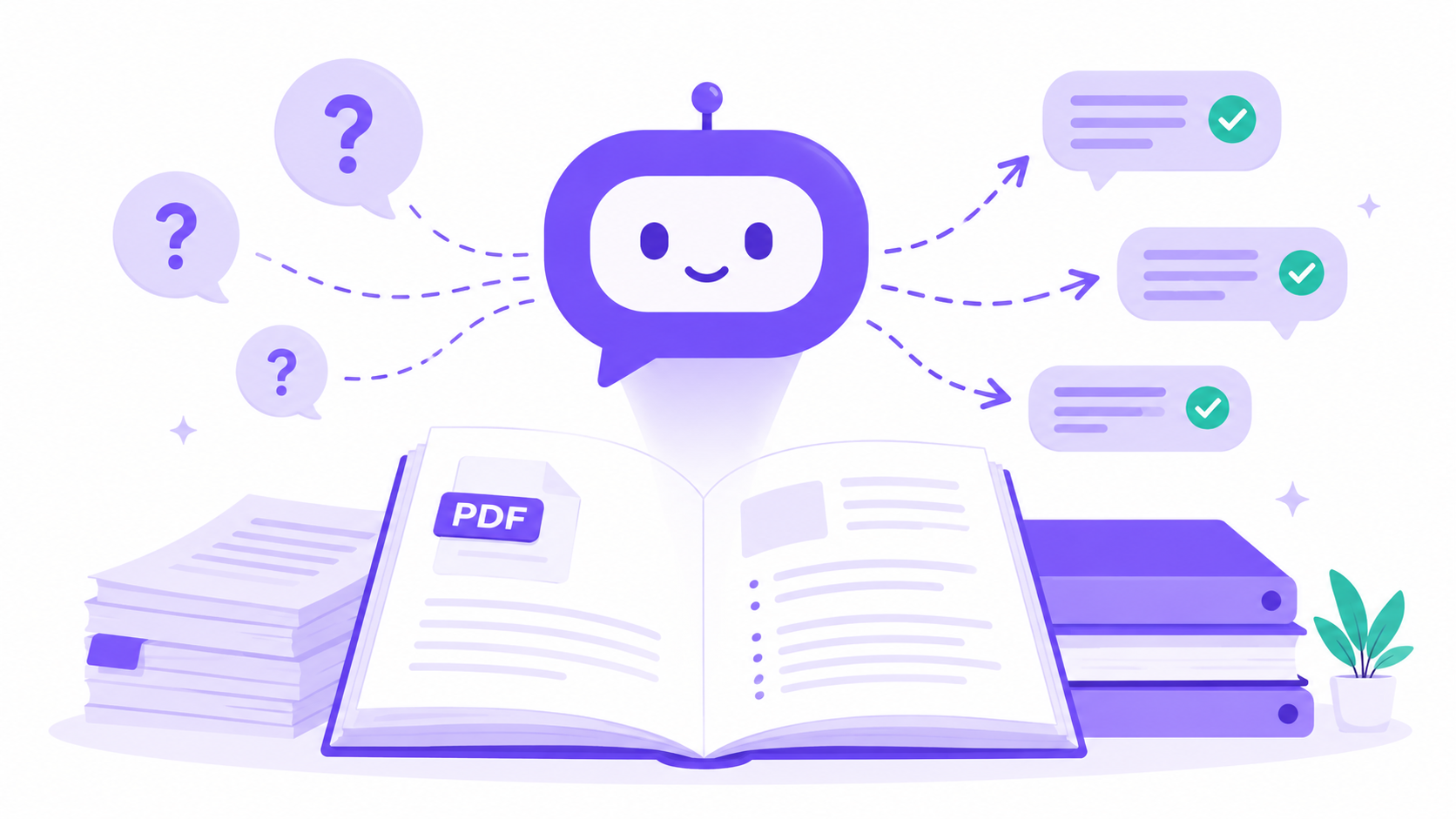
“Chatting with PDFs” is exactly what it sounds like: you upload a document and ask it questions like you’d ask a person. “What’s the main argument?” “What does it say about the deadline in section 3?” “Can you summarize the key findings?”
The document answers. In plain English. In seconds.
Here are 5 free ways to do it — no credit card required.
What “Chatting With a PDF” Actually Means
When you upload a PDF to an AI tool, the tool reads the document and turns it into something it can understand and search. You then ask questions in plain language, and the AI pulls answers directly from the document.
It’s not guessing or pulling from the internet. It’s reading your specific document and responding based on its content. That’s what makes it so useful — especially for documents that are long, dense, or technical.
Think of it as having a research assistant who has read the entire document and will answer your questions instantly, without sighing.
Who This Is For
- Students who need to extract key points from academic papers without reading every word
- Professionals dealing with contracts, reports, or policy documents
- Researchers who need to quickly assess whether a paper is relevant to their work
- Anyone drowning in documentation, manuals, or reading that piled up while they were busy living
Option 1: Claude (claude.ai)
Best for: Accurate, nuanced answers from complex documents
Free tier: Yes — with daily usage limits
Claude (made by Anthropic) is arguably the best free option for PDF conversations right now. It handles long documents well and gives unusually accurate, well-reasoned answers — it’s less likely to hallucinate information that isn’t in the document.
How to use it:
- Go to claude.ai and create a free account.
- Start a new conversation and click the paperclip icon to attach a file.
- Upload your PDF (up to ~32MB on the free tier).
- Start asking questions. No special formatting needed — just ask naturally.
Good opening questions to try:
- “Summarize this document in 5 bullet points.”
- “What are the main conclusions or recommendations?”
- “What does this say about [specific topic]?”
- “Are there any deadlines, fees, or obligations I should know about?”
Limitation: Daily message limits on the free tier. If you hit them, try again tomorrow or switch to one of the other tools below.
Option 2: ChatGPT (chatgpt.com)
Best for: General use, widely familiar interface
Free tier: Yes — with GPT-4o mini on the free plan
ChatGPT is the most widely used AI chatbot, and it supports file uploads including PDFs. The free tier now includes access to GPT-4o mini, which handles documents reasonably well for most purposes.
How to use it:
- Go to chatgpt.com and sign in or create a free account.
- In the message box, click the paperclip or the “+” icon to attach a file.
- Upload your PDF.
- Type your first question — ChatGPT will read the document and respond.
Tip: If the document is long, start with “Give me a brief overview of this document” before diving into specific questions. It orients the AI and tends to produce better follow-up answers.
Limitation: The free tier processes documents but may have lower accuracy on very complex technical documents compared to Claude. PDF uploads on free may also have size limits.
Option 3: Google Gemini (gemini.google.com)
Best for: Google Workspace users, Google Drive integration
Free tier: Yes
Gemini is Google’s AI, and it has one significant advantage over the others: it integrates directly with Google Drive. If your PDFs live in Drive (which they probably do if you use Google Docs), this is the most frictionless option.
How to use it:
- Go to gemini.google.com and sign in with your Google account.
- Upload a PDF using the file icon in the chat, or reference a Google Drive file directly.
- Ask your questions — Gemini can also summarize, translate, and compare documents.
Extra feature: Gemini can work across multiple Google tools simultaneously — useful if you’re working on something that involves both a PDF and a Google Sheet, for example.
Limitation: For pure PDF accuracy, some users find Claude and ChatGPT slightly sharper. But if you’re embedded in the Google ecosystem, the workflow convenience more than compensates.
Option 4: ChatPDF (chatpdf.com)
Best for: Simple, focused PDF Q&A with no account setup
Free tier: Yes — 3 PDFs per day, up to 120 pages each
ChatPDF is built specifically for one thing: talking to PDFs. It’s simpler than the general AI chatbots and requires no account to get started. Upload, ask, done.
How to use it:
- Go to chatpdf.com — no account required for basic use.
- Drag and drop your PDF or paste a link to a publicly available PDF.
- ChatPDF automatically generates suggested questions based on the document — useful if you don’t know where to start.
- Ask your questions in the chat interface on the right.
Why it’s useful: The auto-generated starter questions are a genuinely helpful feature. For first-time users or when you’re not sure what to ask, they give you a useful starting point.
Limitation: 3 PDFs per day and 120-page limit on the free tier. For heavy users, the paid plan ($20/month) lifts these limits significantly.
Option 5: Microsoft Copilot in Edge Browser
Best for: Users who read PDFs in their browser and don’t want to upload anything
Free tier: Completely free with a Microsoft account
This one is genuinely overlooked. If you open a PDF in Microsoft Edge (which is free on any Windows or Mac), Copilot is built into the sidebar. You can ask questions about the PDF you’re currently viewing — no uploading, no copying and pasting.
How to use it:
- Open Microsoft Edge (download free at microsoft.com/edge if needed).
- Open or drag your PDF file into Edge — it opens natively as a PDF viewer.
- Click the Copilot icon in the top-right sidebar (it looks like a small icon with stars).
- Copilot automatically recognizes you’re viewing a PDF and offers to summarize or answer questions about it.
- Ask away — “What are the main points?”, “Find all mentions of the payment terms”, etc.
Why it’s underrated: Zero friction. You’re already looking at the PDF. You don’t have to upload anything or open a new tab. It just works.
Limitation: Less powerful than a dedicated AI chatbot for complex, multi-step analysis. Best for quick questions and summaries rather than deep document research.
Comparison Table: Which Tool to Use When
| Tool | Free? | Best For | Account Needed? |
|---|---|---|---|
| Claude | Yes (limits) | Complex, nuanced documents | Yes |
| ChatGPT | Yes (limits) | General purpose, most familiar | Yes |
| Gemini | Yes | Google Drive users | Google account |
| ChatPDF | Yes (3/day) | Quick use, no login | No |
| Copilot in Edge | Yes | Viewing PDFs in browser | Microsoft account |
How to Organize What You Learn From PDFs
Chatting with a PDF is only half the job. The other half is not losing everything you just extracted five minutes later.
Notion is the tool that most people land on for this, and with good reason. You can create a dedicated reading notes database where each entry contains the document name, a summary, key quotes, and your own notes — all searchable, all organized.
A simple workflow that works:
- Upload PDF to your AI tool of choice and ask for a summary.
- Ask follow-up questions about anything that needs clarification.
- Copy the key findings into a Notion page with your own notes and action items.
- Tag by topic so you can find it later.
Notion’s free plan is enough for most people — and it syncs across devices, so your reading notes are always with you.
Common Questions
Is my document safe when I upload it?
All major AI providers have privacy policies covering uploaded documents. For very sensitive documents (confidential legal files, protected health information), check the provider’s privacy policy before uploading, or use a tool with enterprise-grade privacy. For most everyday documents, the major providers are fine.
What if the AI gets something wrong?
It happens. AI can occasionally misread a document or give an imprecise answer. For anything important, cross-check the AI’s answer against the original document. Use the AI to orient yourself, then verify the specific detail yourself.
Can I upload scanned documents?
It depends on whether the scan is searchable text or just an image. Most tools need actual text content. Scanned PDFs that are image-only may not work well. ChatGPT and Claude can sometimes handle them, but results vary. Google Drive has a built-in OCR tool that can convert image-only scans to searchable text before you upload.
Next Steps
The fastest way to see how useful this is: grab a PDF you’ve been avoiding and try it right now. Use Claude or ChatGPT, upload the file, and ask “What are the 5 most important things in this document?”
You’ll probably be done in two minutes. And then you’ll wonder what else you’ve been reading manually when you didn’t have to.
For more useful AI prompts you can copy immediately, visit the Free AI Prompt Library. For help simplifying complex text without even needing to upload a PDF, see How to Simplify Any Text With AI.
And if you’re still figuring out which AI tools are actually worth your time, 10 Best AI Tools for Beginners gives you a no-hype breakdown.
Who benefits most: Students and freelancers save the most time with PDF chat tools.