Transparency note: Some links in this article are affiliate links. If you sign up through them, we may earn a small commission — at no extra cost to you. This helps keep DumbItDownAI free. See our full disclosure.
You just spent 20 minutes explaining your entire project to ChatGPT. Your writing style, the background, who the audience is, what you tried before. It gave you a great answer. You were vibing.
Then you open a new chat and it greets you like a stranger at a bus stop.
“How can I help you today?”
Cool. Cool cool cool. Thanks for nothing.
If this has ever made you want to throw your laptop across the room — welcome. You are not alone, and more importantly, it is not your fault. AI tools genuinely do forget things, and there are real technical reasons for it. But there are also real workarounds that most people never learn about.
Let me walk you through all of them.
Why AI “Forgets” in the First Place
Here is the thing most people do not realize: AI chatbots like ChatGPT, Claude, and Gemini do not actually have memory the way you and I do. They do not “remember” your last conversation. They re-read it.
Every time you send a message, the AI gets your entire conversation fed back to it as text. It reads everything from the top, generates a response, and then immediately forgets it all again. The conversation you see on screen? That is the memory. The AI itself retains nothing between responses.
But there is a limit to how much text it can re-read. This is called the context window.
Think of it like this: I spent 23 years working in casinos, and I can tell you — no dealer remembers every hand they have ever dealt. A good dealer remembers the current shoe, maybe the last few rounds. But last Tuesday? Gone. The context window is like the dealer’s working memory. It only holds so many cards before the oldest ones get pushed out.
Here is roughly what the major AI tools can hold:
- ChatGPT (GPT-4o): ~128,000 tokens (roughly 96,000 words)
- Claude (Sonnet/Opus): ~200,000 tokens (roughly 150,000 words)
- Gemini 1.5 Pro: ~1,000,000 tokens (roughly 750,000 words)
That sounds like a lot. And for a single conversation, it usually is. The real problem is not the size of the window — it is that every new conversation starts at zero. The AI does not carry information from one chat to the next unless you actively do something about it.
So let us fix that.
1. ChatGPT Memory: The Built-In Option Most People Ignore
ChatGPT actually has a memory feature now. It can remember things across conversations — but only if you set it up properly.
How to activate it:
- Open ChatGPT and click your profile icon (bottom left)
- Go to Settings → Personalization → Memory
- Toggle it on
Once it is active, ChatGPT will automatically pick up on things you mention repeatedly — your name, your job, your preferences. You can also tell it directly: “Remember that I write in British English” or “Remember that I am a freelance designer working with small businesses.”
How to manage it:
- Go to Settings → Personalization → Memory → “Manage” to see what it has saved
- Delete individual memories you do not want
- Say “Forget that I mentioned X” in any conversation to remove something
The honest truth: ChatGPT memory is useful but imprecise. It picks up random things and misses obvious ones. Think of it as a somewhat distracted intern taking notes — helpful, but you would not bet your project on it alone.
2. Custom Instructions: The Trick That Changes Everything
This one is underrated. Custom Instructions are basically a permanent note that gets loaded into every single conversation before you even say anything. Most casual AI users have never touched this feature.
In ChatGPT:
- Click your profile → Settings → Personalization → Custom Instructions
- You get two text fields:
- “What would you like ChatGPT to know about you?” — Your background, role, preferences
- “How would you like ChatGPT to respond?” — Tone, format, length, style
Example that actually works:
I run a small online business selling handmade candles. I am not technical.
I use Shopify for my store and Instagram for marketing.
When I ask for help with marketing, assume a budget under $200/month.
Keep explanations short and practical. No jargon. Give me steps I can do today.
Now every conversation starts with that context already loaded. You never have to re-explain who you are.
In Claude: The equivalent is the system prompt area at the start of a Project (more on that in a second) or in the API. Claude does not have a standalone “Custom Instructions” toggle like ChatGPT, but Projects solve this beautifully.
In Gemini: Look for “Gems” — these are customizable AI personas where you can set permanent instructions for specific tasks.
3. Claude Projects: Building Your AI an External Brain
This is where things get genuinely powerful, and it is one of the reasons I personally use Claude for anything that requires ongoing context.
Claude has a feature called Projects. A Project lets you:
- Upload files that Claude can reference in every conversation within that project
- Write custom instructions (a system prompt) that apply to every chat
- Keep all related conversations in one place
So instead of re-explaining everything each time, you upload your documents — your brand guidelines, your writing samples, your product descriptions, whatever — and Claude just knows.
How to set one up:
- Go to claude.ai and look for “Projects” in the sidebar
- Create a new project and give it a name
- Add your custom instructions in the description field
- Upload relevant files (PDFs, text files, docs)
- Start a conversation inside the project — all your context is automatically loaded
This is probably the closest thing to giving an AI actual long-term memory right now. The files stay there, the instructions persist, and every new conversation within the project starts with full context.
4. Prompt Techniques: Low-Tech Solutions That Work Surprisingly Well
Not everything requires a special feature or a paid plan. Sometimes a good prompt is all you need.
The Summary Technique:
At the end of a long conversation, ask: “Summarize everything we discussed, all decisions we made, and any open questions — in a format I can paste into a new conversation.” Copy that summary. Paste it at the start of your next chat. Done. The AI picks up right where you left off.
The Context Preamble:
Before asking your actual question, give a quick brief:
Context: I am building a Shopify store for handmade candles. My target
audience is women 25-45. My brand voice is warm and playful. Last session
we decided on a pastel color scheme and chose three product categories.

Now help me write the homepage copy.
Three seconds of extra typing. Dramatically better results.
The “Remember that…” Nudge:
Within a long conversation, if the AI starts drifting, just say: “Remember that we agreed to keep the tone casual and under 200 words per section.” This nudges the AI to re-prioritize that instruction without starting over.
5. External Memory: Use Notion or Google Docs as Your AI’s Filing Cabinet
Here is a strategy that works across every AI tool, no special features needed.
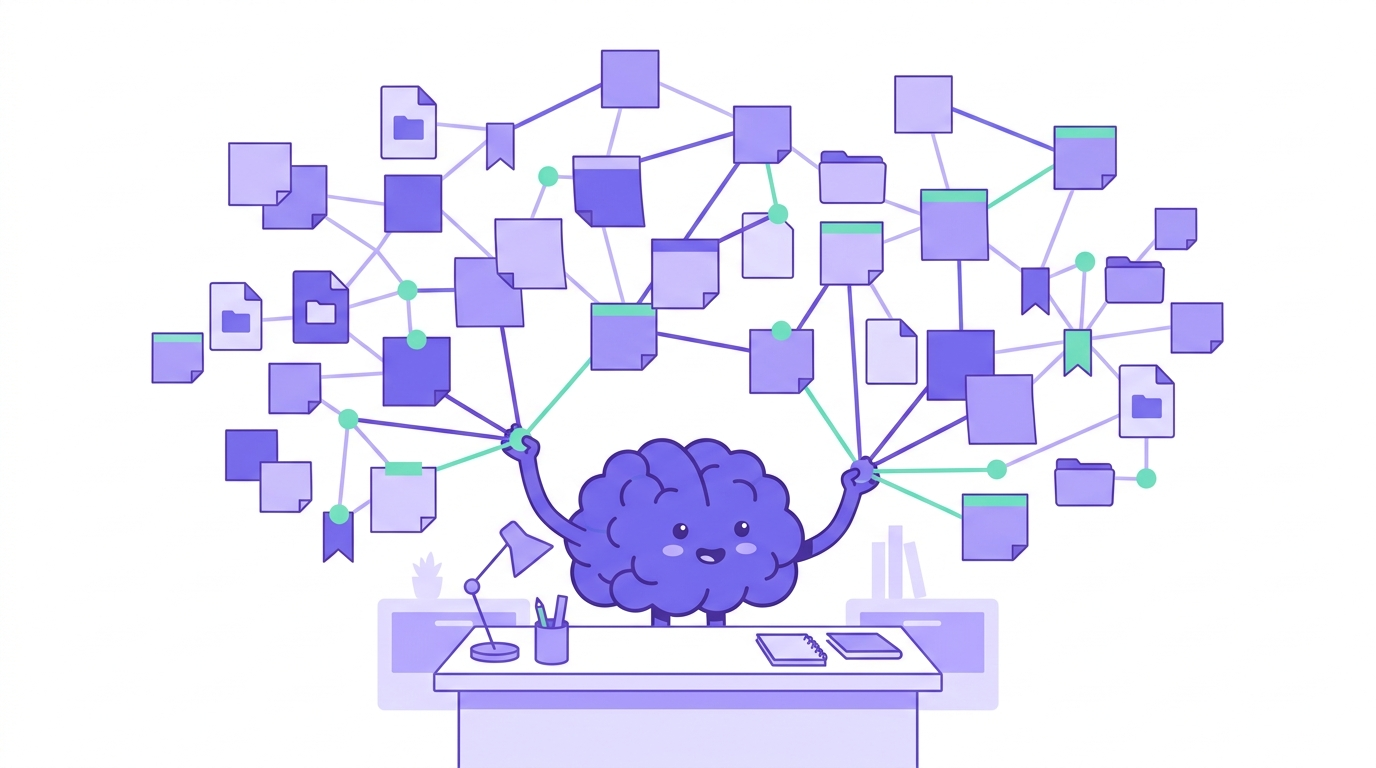
Create a document — in Notion, Google Docs, or even a plain text file — where you keep a running “AI context file.” This is your external brain for AI conversations.
What to put in it:
- Your background and role
- Projects you are working on and their current status
- Decisions you have made (and why)
- Your preferences (tone, format, length)
- Key terminology or jargon specific to your work
- Anything the AI kept getting wrong that you had to correct
Notion is particularly good for this because you can organize it with headings, toggles, and databases — and then just copy-paste the relevant section into your AI conversation when you need it. Think of it as a cheat sheet for your AI.
If you use Claude Projects, you can even upload this document directly and skip the copy-pasting entirely.
6. Pro Tip: Memory Files (What I Actually Use)
Full transparency — this is what runs behind the scenes for me, and it is the reason I can have productive AI sessions without repeating myself every five minutes.
I use structured memory files. These are plain text or Markdown files that contain everything the AI needs to know: project details, brand guidelines, writing style rules, what was decided in previous sessions, what is on the to-do list.
When I start a new session, the AI reads these files first. It knows what I am working on, what my preferences are, and what happened last time. No “catching up” needed.
I am not going to pretend this is a beginner setup — it took some tinkering. But the concept is simple: write down what your AI needs to know, and make sure it reads that file at the start of every session. You can do a basic version of this with any text file and some copy-pasting.
The takeaway for you: the best AI memory is the one you build yourself. Do not rely on the tool to remember. Be the memory.
Comparison: Memory Features by AI Tool (2026)
| Feature | ChatGPT | Claude | Gemini |
|---|---|---|---|
| Auto Memory (cross-chat) | Yes | Limited | Yes |
| Custom Instructions | Yes | Via Projects | Via Gems |
| File Uploads for Context | Yes | Yes (Projects) | Yes |
| Project-Based Organization | No | Yes | Via Gems |
| Context Window Size | ~128K tokens | ~200K tokens | ~1M tokens |
| Memory You Can Edit | Yes | Yes (files) | Limited |
| Free Tier Memory | Yes | Projects = Pro | Yes |
Your “Never Repeat Yourself” Checklist
Here is exactly what to do, starting today:
- Turn on ChatGPT Memory — Settings → Personalization → Memory. Takes 10 seconds.
- Fill in Custom Instructions — Tell ChatGPT (or your AI of choice) who you are, what you do, and how you like responses. This alone saves you five minutes per conversation.
- Start a context document — Open Notion or Google Docs. Create a page called “AI Context.” Write down your background, current projects, and preferences. Copy-paste relevant sections into new AI chats.
- Use the summary trick — Before ending any important AI conversation, ask for a summary you can paste into the next one.
- Try Claude Projects — If you work on the same project regularly, set up a Claude Project with your files and instructions. It is the closest thing to giving AI real memory.
- Do not trust the AI to remember — Treat it like a brilliant colleague with amnesia. Always bring your notes.
The Bottom Line
AI forgetting everything is not a bug you are stuck with — it is a design limitation you can work around. The people getting the best results from AI are not smarter or more technical. They just stopped expecting the AI to remember and started building systems so it does not have to.
The best AI memory is the one you build yourself. Start simple — Custom Instructions and a context doc — and go from there.
And if you are worried about what your AI does (and does not) remember about you from a privacy standpoint, that is a whole separate conversation worth having. Check out our AI Safety 101 guide for the full picture.
Affiliate disclosure: This article contains affiliate links to Notion. If you sign up through these links, DumbItDownAI may receive a commission at no additional cost to you. We only recommend tools we genuinely use and trust. Full details on our Affiliate Disclosure page.